Create a custom Minecraft sword with AI
Make one custom sword for Minecraft Java 1.21.1 and Fabric. Write a clear prompt, inspect the 3D shape, choose a model or JAR download, and test it in game.
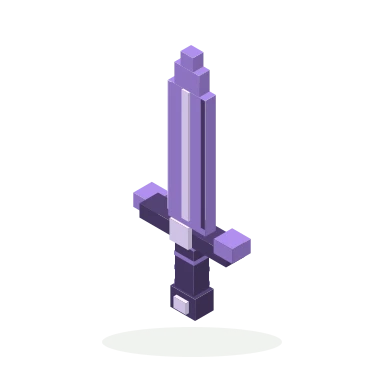
A sword has two separate jobs: it needs a readable shape, and it needs the gameplay you asked for. MC Mod Maker lets you describe both, inspect the model in a browser, and download a Fabric mod after its build succeeds. Its current Java target is Minecraft 1.21.1 with Fabric and Java 21.
This walkthrough is a suggested creation exercise. The public crystal sword linked below is an existing model example, not a newly generated or game-tested result from this tutorial.
1. Decide whether you need a model or a playable item
If you want an editable shape, a Blockbench .bbmodel file is enough to begin working on the asset. If you want Minecraft to register a new sword with gameplay properties, you need the compiled .jar and a matching Fabric installation. Putting a .bbmodel in the game's mods folder will not install an item.
You can download the existing crystal sword model and open it in Blockbench to inspect a small example before generating your own. It is a model asset; this download does not include a playable mod. See the file-format guide if you are deciding between a model, a resource pack and a mod.
2. Describe one sword with a few clear constraints
Open the creation studio, sign in, and start with one item. For example:
Create a Minecraft-style sword with a long purple crystal blade, a dark charcoal handle and a short silver crossguard. Keep the silhouette simple and readable from the front and side. Make it a sword item with attack damage 8. Target Minecraft Java 1.21.1 with Fabric.
The material and color choices describe the appearance. The damage value describes a gameplay property. A phrase such as “glowing blade” describes a look unless you also specify a supported gameplay effect; it does not by itself establish that the item emits light in Minecraft.
For an image-guided sword, use Add materials to attach a PNG, JPG or WebP reference up to 8 MB. A clear silhouette is more useful than a busy scene. Reference images guide a cuboid approximation rather than an exact mesh reconstruction. You can attach an image you have permission to use; the studio does not accept uploaded mod or model files.
The optional AI prompt button turns your text and selected materials into an editable prompt. Review its wording before generating. A verified account has up to 20 free requests per day, shared across devices, with the allowance resetting at 00:00 UTC. Generation and each requested modification use 100 credits; the one-time introductory grant is 120 credits with no expiration.
3. Inspect the shape before revising it
Click Generate, then choose View result when the task is ready. The completion notice leaves your current preview available until you choose the result.
Check the blade from the front and side, then look at the handle and crossguard. A thin detail that looks strong from one angle may disappear from another. Check these three questions:
- Is the blade separated clearly from the handle?
- Are the crossguard and pommel visible without crowding the silhouette?
- Do the colors remain readable at a small size?
The browser shows the model and available visual effects. It does not establish attack damage, held-item placement, durability or compatibility in Minecraft.
4. Make one focused change
To revise this sword, select its saved creation through Add materials and use the modify operation. Opening a history thumbnail alone does not attach it as an editing source. A normal generation without a selected source starts a new project.
Try a revision such as:
Keep the blade shape, purple colors, damage and all other features. Shorten the crossguard by one third and make the handle darker.
Changing one part makes it easier to judge whether the result improved. Keep a download of the version you prefer before experimenting further.
5. Download and test the correct file
Choose the .bbmodel if you want to continue editing the asset in Blockbench. Its official overview explains the separate model, texture, animation and display editing modes; available modes depend on the model format. Editing a downloaded model does not automatically update the mod you already built.
For a playable sword, wait for a successful Fabric build and download the compiled .jar. Follow the Fabric installation tutorial, using the matching Minecraft version and dependencies. In a separate test world, find the item using the download's instructions and check its appearance in your hand, inventory and dropped-item view. Then test the requested damage against an appropriate target.
If the shape looks right but the in-game result differs, keep the creation version and describe the specific observation to support. A screenshot of the preview helps explain appearance; a game screenshot and the exact version help explain a gameplay problem.